
How to Install IPTV on Smart TV – Complete Samsung, LG & Android TV Guide
Want to watch IPTV directly on your Smart TV without connecting an additional streaming box? Many modern Samsung, LG, and Android TVs support IPTV applications that allow you to load a compatible television playlist and watch live channels, movies, and series.
Learning how to install IPTV on Smart TV starts with choosing an application that works with your television's operating system and the login format supplied by your IPTV provider.
In this step-by-step guide, we'll explain how to install and configure three popular Smart TV IPTV players:
- HotPlayer – A playlist-based IPTV application for supported televisions
- SmartOne IPTV – A Smart TV player with playlist management features
- IBO Pro Player – An IPTV player using device identification and web-based playlist configuration
We'll also cover M3U playlist uploads, device MAC addresses, common setup problems, and how to choose the right IPTV application.
If you already own a compatible television and need an IPTV subscription, explore BossTV's Smart TV IPTV app compatible service options.
1. What Do You Need to Install IPTV on a Smart TV?
Before installing an IPTV player, make sure you have the following:
- A compatible Samsung, LG, or Android Smart TV
- A working internet connection
- Access to your television's application store
- An IPTV player supported by your TV model
- A compatible M3U playlist URL or other supported IPTV account format
- The MAC address or device identification information required by your chosen application
An IPTV application is not the same thing as an IPTV subscription. The application provides the interface for playing television streams, while the subscription or authorized content source supplies the programming.
You should also check whether your chosen player requires an activation payment after a trial period.
2. Installing IPTV on Samsung, LG & Android TVs
The installation process depends on your television's operating system.
Samsung Smart TV
- Turn on your Samsung television.
- Press the Home button on the remote.
- Open Apps or the available Samsung application store.
- Search for the IPTV application you want to install.
- Select the application and follow the installation instructions.
- Open the application after installation.
LG Smart TV
- Turn on your LG television.
- Open the LG application store or Apps section.
- Search for a compatible IPTV player.
- Install the application if available for your model.
- Launch the player and review its setup instructions.
Android TV & Google TV
- Open Google Play Store or the Apps section.
- Search for a compatible IPTV application.
- Select the correct app and verify its publisher.
- Install the application.
- Open the app and choose the appropriate playlist or login option.
Not every IPTV app is available on every television. App-store availability depends on the TV model, operating system, country, and developer support.
3. HotPlayer IPTV Setup on Smart TV
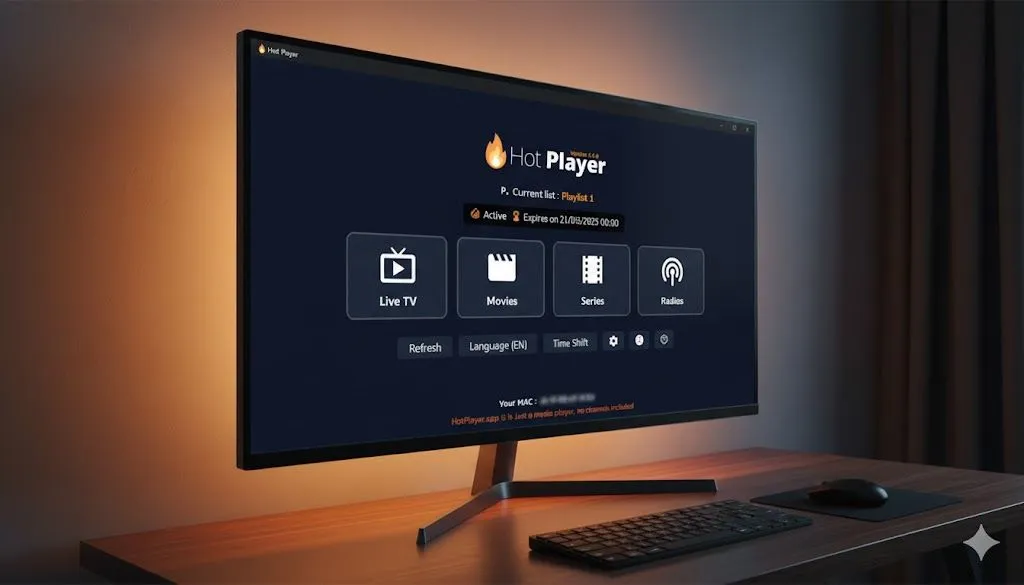
HotPlayer is an IPTV media player that allows users to load compatible playlists and access television streams through a supported Smart TV.
The setup typically involves installing the application, identifying the device information displayed by the player, and adding an IPTV playlist through its configuration website.
Step 1: Install HotPlayer
- Open the application store on your Samsung, LG, or Android TV.
- Search for HotPlayer.
- Verify that the application matches the player you intend to use.
- Install it if supported by your television.
- Launch HotPlayer.
Important: HotPlayer, HotPlayer Pro, and HOTIPTV may refer to different applications. Do not assume that their websites, activation systems, or playlist upload instructions are interchangeable.
Step 2: Find the HotPlayer MAC Address
When you open HotPlayer, the application may display a MAC address or another device identifier used for playlist configuration.
- Open the HotPlayer application.
- Find the MAC address or device identification information displayed on the setup screen.
- Record the information exactly as shown.
- Keep the application open while configuring the playlist.
Step 3: Upload Your IPTV Playlist
For the HotPlayer version using the following configuration page, visit:
- Open the playlist upload page on your phone or computer.
- Enter the MAC address displayed in the HotPlayer application.
- Enter your M3U playlist URL.
- Choose a recognizable playlist name, such as My IPTV.
- Save the playlist configuration.
- Return to the television.
- Restart or refresh HotPlayer to load the playlist.
If the playlist does not appear, confirm that you entered the correct device identifier and playlist URL.
Avoid entering IPTV credentials into websites that do not belong to the application developer or a trusted service.
4. SmartOne IPTV Setup on Samsung & LG TVs
SmartOne IPTV is another IPTV player designed for supported Smart TV environments. It allows users to configure compatible playlists and browse television channels using a TV remote.
It can be useful for viewers who want to use an IPTV application directly on a compatible Samsung or LG television.
Step 1: Install SmartOne IPTV
- Open your television's application store.
- Search for SmartOne IPTV.
- Confirm that the application is available for your television model.
- Install the application.
- Launch SmartOne IPTV.
Step 2: Identify Your Device
SmartOne IPTV may display device identification details required for playlist activation or management.
- Open the SmartOne IPTV application.
- Locate the displayed MAC address or device identification information.
- Record the details accurately.
- Review any activation instructions shown by the application.
Step 3: Add an IPTV Playlist
- Visit the playlist management website specified by your installed SmartOne IPTV application.
- Enter the required device identification information.
- Choose the supported playlist or account format.
- Enter your M3U playlist URL or other supported connection details.
- Save the configuration.
- Restart or refresh SmartOne IPTV.
- Wait for the available television channels to load.
The available configuration methods may vary by app version. Follow the instructions supplied by the application developer.
5. IBO Pro Player Setup on Smart TV
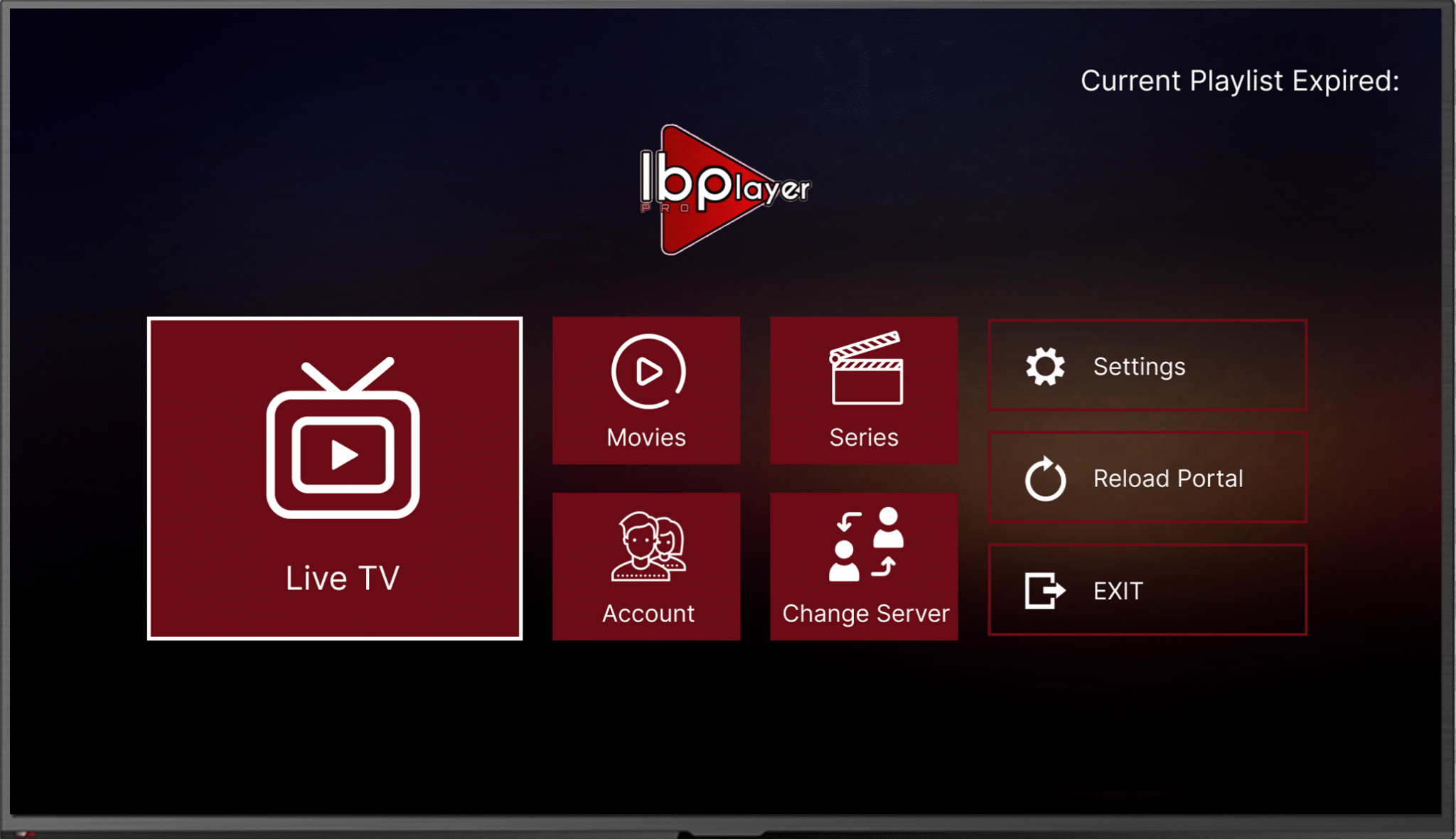
IBO Pro Player is a playlist-based IPTV application that can be used on supported Smart TVs.
Its setup process commonly uses device identification information, such as a MAC address and device key, to connect the television application with a web-based playlist management system.
Step 1: Install IBO Pro Player
- Open your Samsung, LG, or Android TV application store.
- Search for IBO Pro Player.
- Verify the application name and publisher.
- Install the supported version.
- Open the application.
Step 2: Locate Your MAC Address and Device Key
After launching the application, you may see:
- MAC Address
- Device Key
- Activation or playlist management instructions
Write down the MAC address and device key exactly as displayed.
These details identify the player installation for playlist configuration. They are not necessarily the same as your IPTV subscription username and password.
Step 3: Configure the Playlist
- Open the official playlist management website specified by your IBO Pro Player application.
- Enter the required MAC address and device key.
- Select the appropriate playlist configuration option.
- Enter the M3U playlist URL supplied with your subscription.
- Save the playlist.
- Return to your Smart TV.
- Refresh or restart IBO Pro Player.
After the playlist loads successfully, you should be able to browse the available channels and content supported by your subscription.
Check whether the application requires a separate activation fee. Paying for an IPTV player does not automatically include television channels.
6. Which Smart TV IPTV App Should You Choose?
HotPlayer, SmartOne IPTV, and IBO Pro Player all provide ways to configure compatible IPTV content, but their setup requirements and supported television models may differ.
| IPTV Player | Setup Method | What to Check |
|---|---|---|
| HotPlayer | Device identifier and playlist upload | Correct app version and upload website |
| SmartOne IPTV | Device identification and playlist management | Smart TV compatibility and activation terms |
| IBO Pro Player | MAC address, device key, and playlist configuration | Official management portal and app activation |
The best choice depends on which application is supported by your television and whether it accepts the IPTV connection format you have.
7. M3U Playlist vs. Xtream Codes on Smart TV
When installing IPTV on a Smart TV, you'll often encounter two common connection methods: M3U playlists and Xtream Codes.
M3U IPTV Playlist
An M3U playlist is a URL or file containing information used by a compatible IPTV application to access television streams.
Many Smart TV IPTV players allow users to add an M3U playlist through a web-based configuration page.
Xtream Codes IPTV
Xtream Codes-compatible subscriptions generally use:
- Server URL
- Username
- Password
Some IPTV applications support direct Xtream Codes login, while others require an M3U playlist.
Before purchasing an IPTV subscription, verify that your selected Smart TV application supports the required connection method.
8. How to Load IPTV Channels on Your Smart TV
After successfully uploading your playlist or entering compatible account details, your IPTV player should begin loading the available content.
Depending on the subscription and application, available categories may include:
- Live TV channels
- International television
- Sports programming
- Movies
- Television series
- Video-on-Demand
- Favorites
- Electronic Program Guide
If a category does not appear, confirm that your IPTV subscription includes that content and that the application supports the required feature.
9. Smart TV IPTV Streaming Tips
A correctly installed IPTV player can still experience buffering or playback problems when the internet connection, source stream, or television software is not working properly.
To improve playback conditions:
- Use a stable internet connection.
- Connect your television through Ethernet when supported.
- Keep the Smart TV software updated.
- Update the IPTV application when new versions are available.
- Restart the television if the application becomes unresponsive.
- Check whether the issue affects every channel or only specific streams.
- Close unnecessary applications when possible.
Streaming quality also depends on the original content source and the performance of the IPTV service.
If you're comparing IPTV packages for your television, explore affordable home TV service options through BossTV and confirm compatibility with your chosen application.
10. Troubleshooting IPTV on Samsung and LG Smart TVs
IPTV App Is Not Available in the TV Store
The application may not support your television model, operating system, or region. Check the developer's compatibility information or consider another supported IPTV player.
Playlist Does Not Load
Check the playlist URL, device identifier, internet connection, and subscription status. Confirm that the playlist format is supported by the application.
Incorrect MAC Address
Some IPTV players use an app-specific MAC identifier. Use the exact value displayed inside the application rather than assuming the television's network MAC address is correct.
IBO Pro Device Key Not Working
Confirm that the device key was entered accurately and that you're using the official management portal for the installed application.
Channels Are Buffering
Test your internet connection, restart the app, and compare playback across several channels. A wired connection may help if Wi-Fi interference is contributing to the problem.
Movies or Series Are Missing
Not every IPTV subscription includes Video-on-Demand. Check whether your package and application support movies and series.
App Requests an Activation Payment
Some IPTV applications require payment after a trial or evaluation period. Verify the terms through the official application developer before making a payment.
Frequently Asked Questions About Installing IPTV on Smart TV
Can I install IPTV directly on a Samsung Smart TV?
Yes. Supported Samsung televisions can run compatible IPTV applications available through their application store. App availability depends on the television model and operating system.
Does IPTV work on LG Smart TVs?
Yes. Compatible LG televisions can use IPTV applications developed for their webOS environment. Confirm that your selected player supports the television model.
What is the best IPTV app for Samsung and LG TVs?
HotPlayer, SmartOne IPTV, and IBO Pro Player are options worth comparing where supported. The best choice depends on app availability, subscription compatibility, and preferred features.
Do I need a Firestick to watch IPTV on a Smart TV?
Not necessarily. If your Smart TV supports a compatible IPTV application, you may be able to use the television directly without an additional streaming device.
What is an IPTV MAC address?
An IPTV application may display a MAC address or device identifier used to associate playlists or activation information with that application. It may differ from the television's network MAC address.
Can I use an M3U playlist on Smart TV?
Yes. Many IPTV applications support M3U playlists. Check the player documentation for the supported upload or import method.
Does HotPlayer include IPTV channels?
HotPlayer is an IPTV player rather than a television content subscription. A compatible playlist or authorized content source is required.
Can I use Xtream Codes with IBO Pro Player?
Supported login methods may vary by application version. Check whether your installed IBO Pro Player version accepts Xtream Codes directly or requires an M3U playlist.
Is IPTV on Smart TV legal?
IPTV is a television delivery technology and is not inherently illegal. The legality of particular television streams depends on content authorization, distribution rights, and applicable laws.
Final Thoughts: Installing IPTV on Your Smart TV
Learning how to install IPTV on Smart TV is easier when you understand the difference between the IPTV application, device identification, and subscription playlist.
HotPlayer, SmartOne IPTV, and IBO Pro Player provide different ways to configure compatible IPTV playlists on supported televisions.
Start by checking your television's app store, install the appropriate player, follow its official playlist configuration instructions, and confirm that your IPTV subscription supports the required connection method.
Once your playlist is configured correctly, you can browse the available television channels and entertainment categories directly from your Smart TV.